1. App Setup: Adding the Device, Connecting Wi-Fi, and Updating Firmware
First, you'll need to get the device connected to your network and ensure it's running the latest firmware using the LinknLink app.
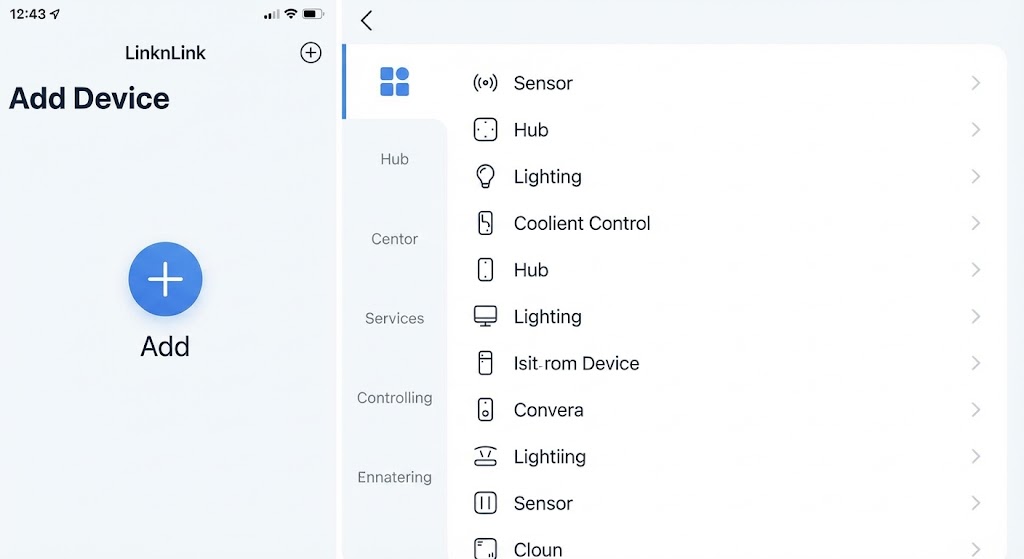
- Add the Device: Open the LinknLink app and tap the "+" icon or "Add Device" button on the main screen. Select the correct device category (e.g., "Sensor") from the list.
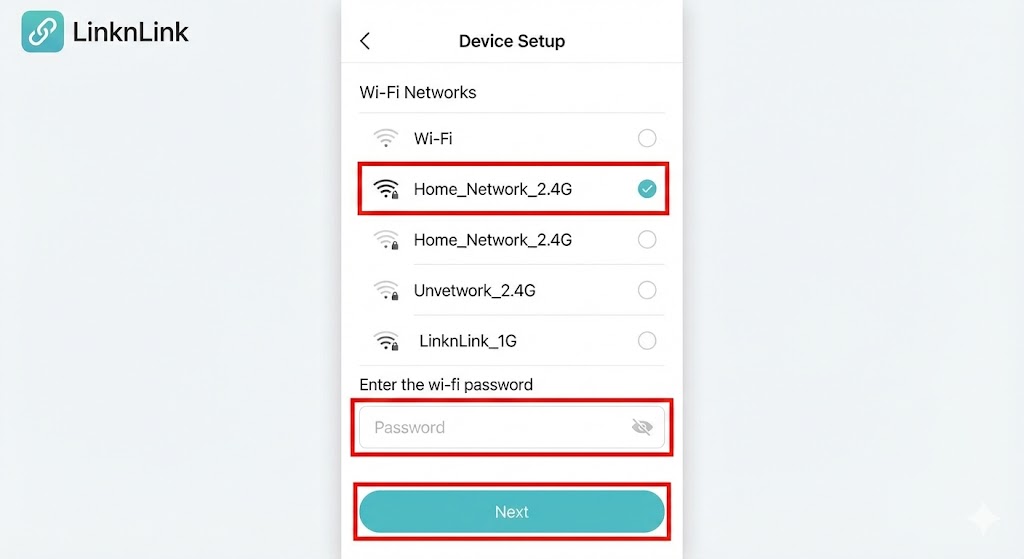
- Connect to Wi-Fi: Follow the on-screen instructions to put your sensor into pairing mode. Once detected, the app will prompt you to select your 2.4GHz Wi-Fi network and enter the password to connect the device to your home network.
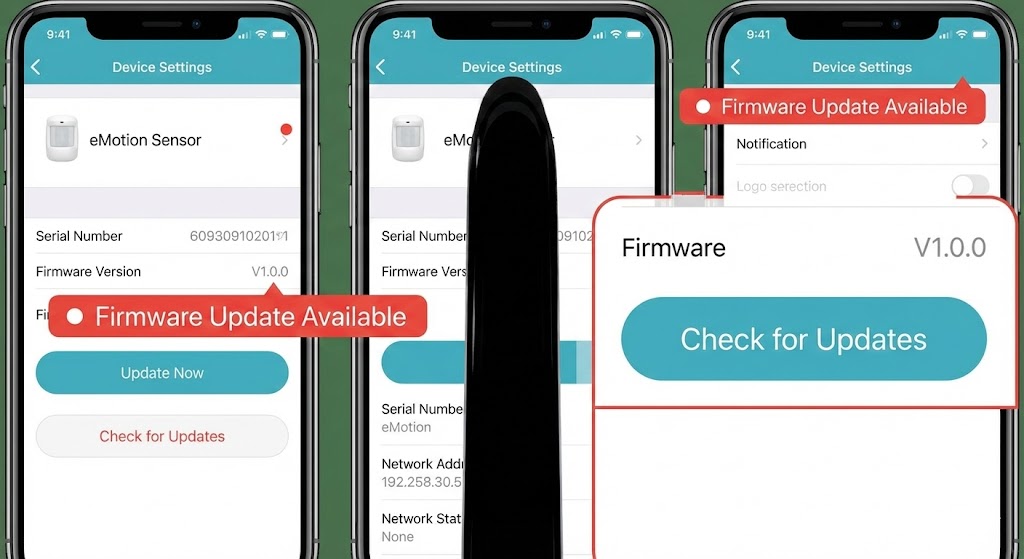
- Update Firmware: After the device is successfully added, check its settings page. If a new firmware version is available, you will see a notification. It is highly recommended to update to the latest version for the best performance and new features.
2. Sub-devices: Configuring Presence, Light, and Temp/Humidity Sensors
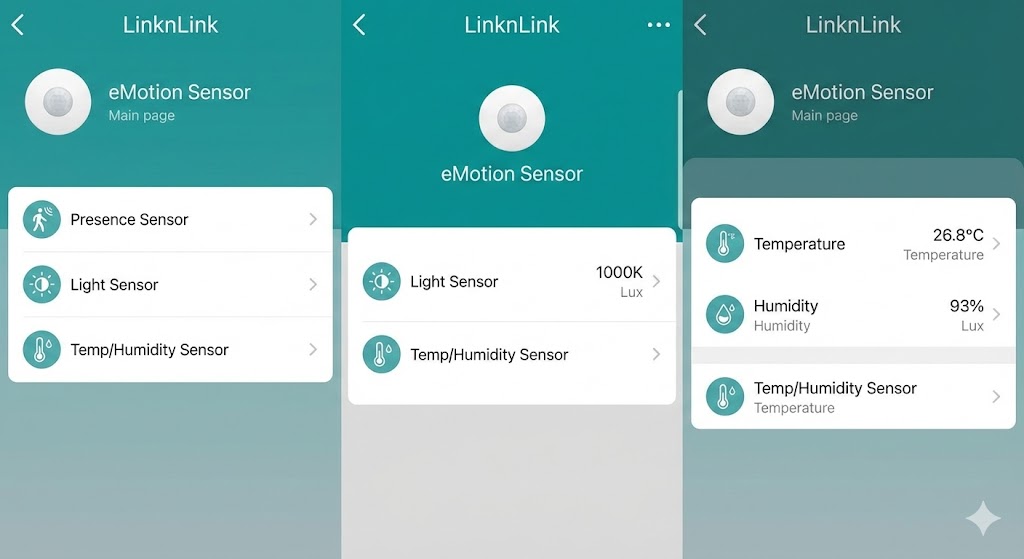
Once the eMotion Sensor is set up, you can configure its individual components. On the device's main page in the app, you will see the different sub-devices listed. Tap on each one to access its specific settings and view its real-time readings. You can customize parameters for the Presence Sensor, Light Sensor, and Temp/Humidity Sensor to suit your needs
3. MQTT Integration: Connecting Locally to Home Assistant
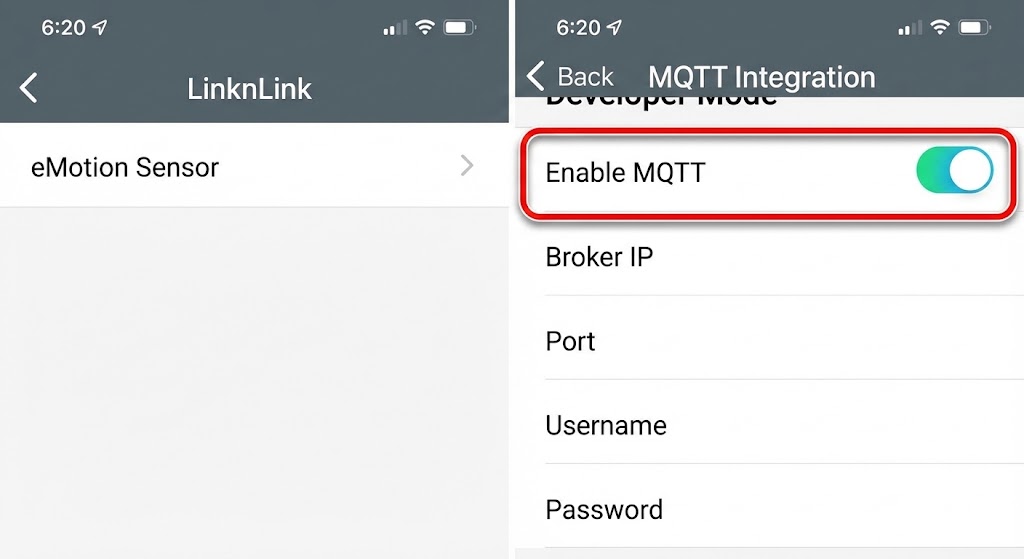
For advanced users who want to integrate the sensor with Home Assistant for local control, the LinknLink app offers a simple MQTT integration. Navigate to the device's advanced settings or a "Developer Mode" section. There, you will find a toggle to "Enable MQTT." Once enabled, you can enter your MQTT broker's details to establish a local connection, allowing Home Assistant to discover and communicate with the sensor directly.